
 July 23, 2025
 Support Team, Professional Trainings
📘 iLearn Gambia Implementation Guide
For Schools, Teachers, and Students
🏫 For Schools (Head Teachers, ICT Focal Points)
✅ 1. Set-Up & Orientation
- Assign a school-based iLearn Coordinator (preferably an ICT teacher or focal point).
- Ensure availability of Android devices or Fuzion SD card tablets (preloaded or internet-enabled).
- Organize an orientation session for staff and students on using the platform.
✅ 2. Account Management
- Receive school account access credentials from the iLearn Team immediately after sign up
- Create or verify teacher and student user accounts
- Maintain updated records of active users and report technical issues.
✅ 3. Infrastructure Requirements
- Ensure charging stations or power supply access.
- Provide a secure device storage area for school-shared tablets or computers.
- If using SD cards, assign and track them for student use.
✅ 4. Monitoring & Reporting
- Submit regular updates on:
- Number of active learners and teachers
- Device usage logs
- Noted challenges or feedback via the M&E forms
👩🏽🏫 For Teachers
✅ 1. On-boarding
- Log in with assigned credentials via the iLearn Gambia mobile app or web platform:
https://ilearngambia.e-learning.gm - Update your profile and link to your assigned school and grade level.
✅ 2. Lesson Integration
- Use iLearn to:
- Assign digital lessons
- Reinforce in-class instruction with video content and quizzes
- Track student activity and progress using built-in tools
- Upload lessons for offline use when needed.
✅ 3. Continuous Professional Development (CPD)
- Participate in MoBSE/STED-led digital CPD modules.
- Access training on integrating digital content into lesson plans.
✅ 4. Support & Reporting
- Report technical issues or errors to the iLearn support team.
- Contribute feedback via the teacher M&E forms for improvement.
👧🏽👦🏿 For Students
✅ 1. Getting Started
- Receive login access immediately after sign up
- Access the platform using:
- A school-provided device
- A shared home phone or tablet
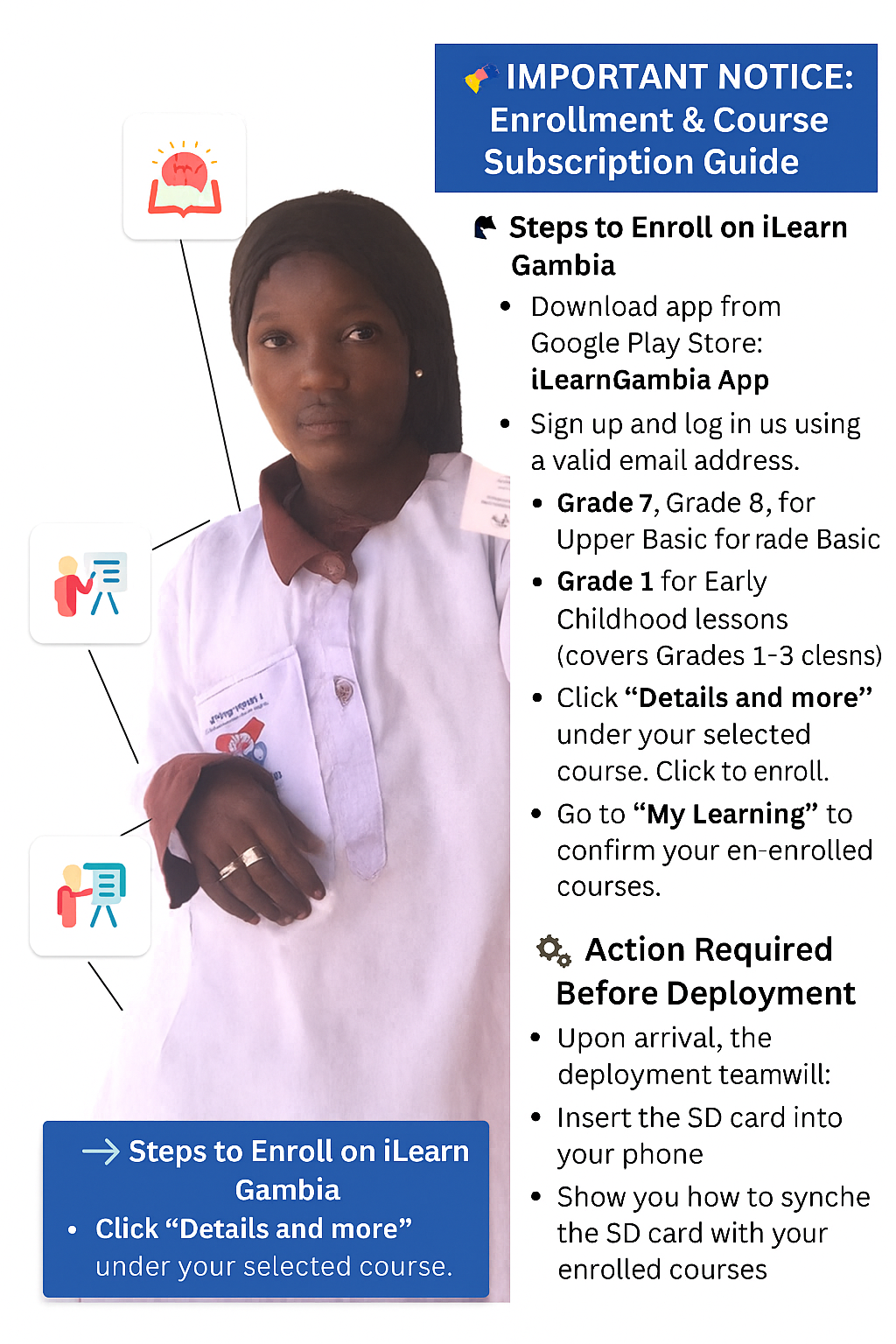
- A tablet with an SD card for offline access
✅ 2. Learning Activities
- Select your grade and subject from the dashboard.
- Watch videos, read lessons, and complete quizzes or assignments.
- Practice lessons repeatedly at your own pace.
✅ 3. Offline Access (if using SD card)
- Insert the SD card into the device and open the iLearn App.
- No internet needed — all lessons are available directly from the card.
✅ 4. Digital Responsibility
- Take care of devices and SD cards.
- Ask for help from teachers or coordinators if something isn’t working.
- Use the platform for learning only.
📊 Monitoring & Evaluation
All users should participate in feedback activities via provided forms:
- Student Usage Form
- Teacher Feedback Form
- School Deployment Report
This helps the iLearn Gambia team and MoBSE improve the platform, track access, and expand services.
💬 Support Contacts
📧 Support Email: info@e-learning.gm
📞 Help Desk: +220 2530620
🔗 Platform: https://ilearngambia.e-learning.gm